
MacBook USB-C Port Not Working? Try These Fixes
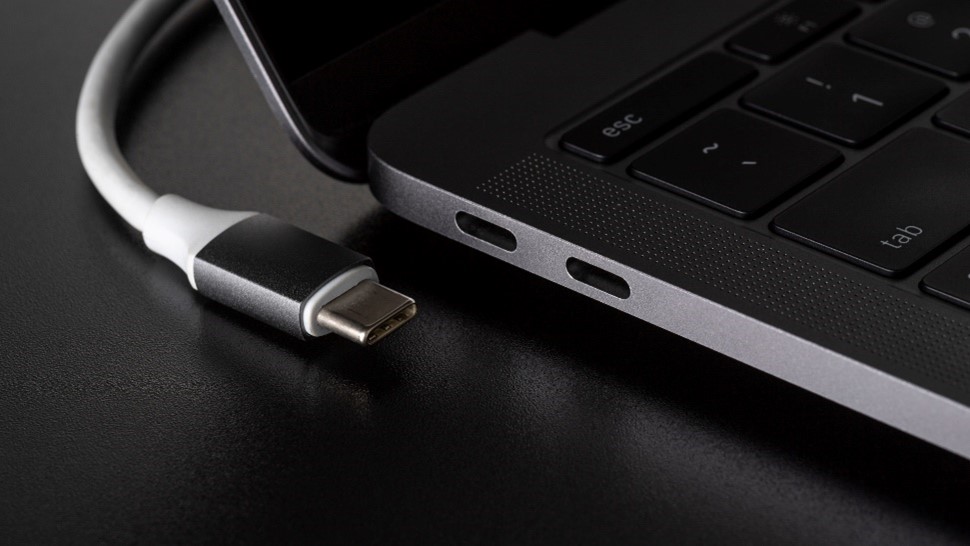
Common Symptoms
- Not charging via USB-C
- Random disconnects with docks/drives
- Slow or failed file transfers
Quick Fixes to Try
- Update macOS ( → System Settings → Software Update).
- Reset SMC and NVRAM (power/firmware settings that affect ports).
- Clean the port and connectors with compressed air and a microfiber cloth.
- Swap charger/cable (test with Apple-certified gear and a known-good outlet).
- Inspect for damage (loose/wobbly ports or signs of liquid need pro repair).
Tip: If only one side charges, that port cluster may be failing—try the other side and note patterns before booking service.
When to See a Tech
If resets and known-good cables don’t help, it may be a port or logic-board issue. Bring the charger/cable you use so a tech can reproduce the fault quickly.
Prevent Future Issues
- Use certified chargers and high-quality cables (e-marked for higher wattage).
- Avoid strain/bending on plugged cables; consider a right-angle connector.
- Keep ports clean; dust caps help if you work in dusty/humid environments.